Presentations
Design slides, edit them together, create them with Kasimir and share them as PowerPoint or PDF.
Presentations let you build slide decks right in Kasimir – on your own, with your team or together with Kasimir. You can open PowerPoint files and download your presentation as PowerPoint (.pptx) or PDF at any time.
Create a presentation
Open Artifacts (or the Artifacts tab in a project or team).
Under “Create something new”, choose the Presentation tile.
Choose the slide size: Widescreen (16:9) is preselected, Standard (4:3) suits older projectors. If your company has several presentation templates, pick one first.
The first slide is a title slide. A company template brings its own slide size – then Kasimir does not ask for a size. If a template is set as the default, the presentation starts right in it.
Design slides
Use the bar above the slide to add:
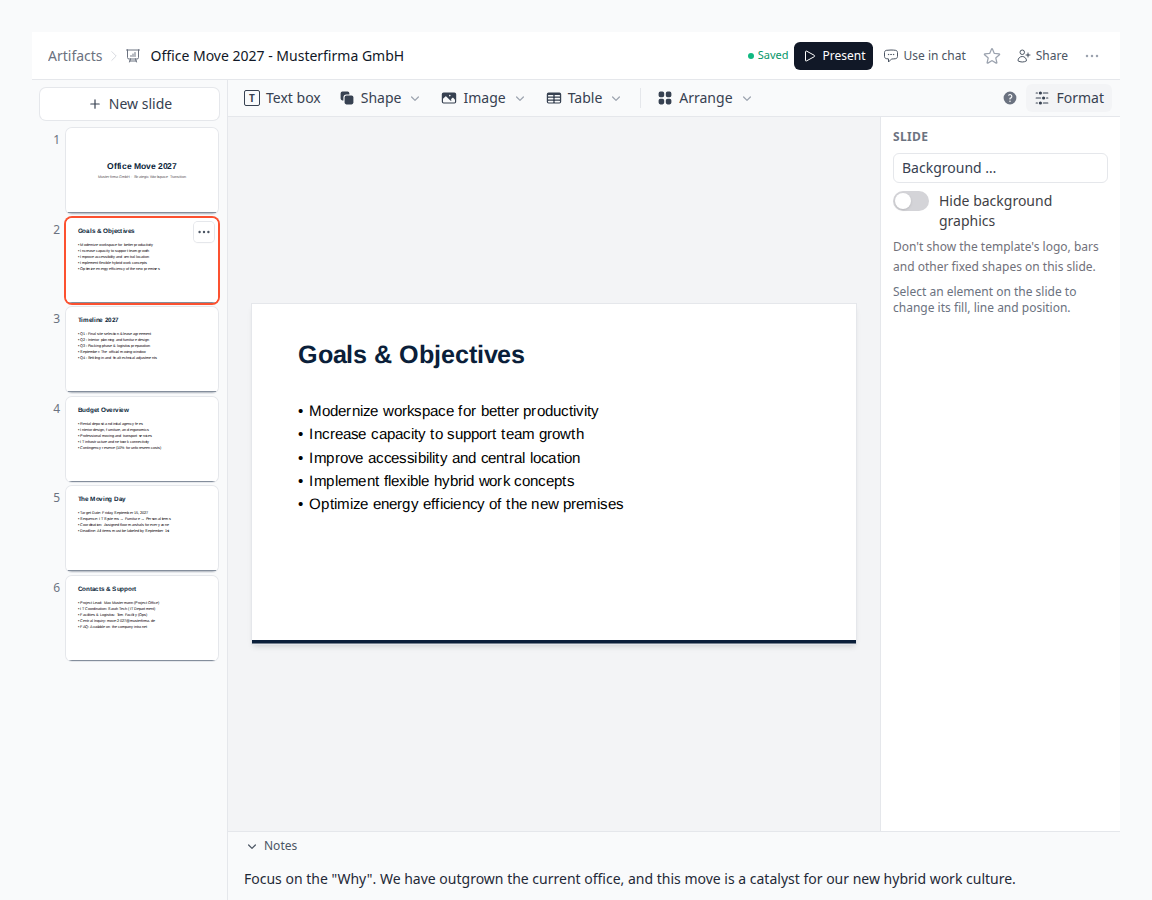
The editor: slide panel on the left, tools at the top, format panel on the right, notes at the bottom.
Text box – type, then change font, size, colour, bullets and alignment in the format bar.
Shape – rectangle, ellipse, arrows, lines and more. Lines and arrows snap to shapes.
Image – upload, pick from your files or take one from Images. Use Format → Crop to crop it.
Table – choose the size in the grid, add or remove rows and columns later.
Move elements with the mouse or the arrow keys (hold Shift for bigger steps). While dragging, guides help you align elements to the slide centre and to other elements. Arrange has layers, align, distribute and group.
Useful shortcuts (press ? to see all):
Shortcut | Action |
|---|---|
Ctrl+D | duplicate selection |
Ctrl+C / Ctrl+V | copy and paste – also onto another slide or into another presentation |
Ctrl+G / Ctrl+Shift+G | group / ungroup |
Ctrl+Z / Ctrl+Y | undo / redo |
Delete | delete selection |
Enter | edit the text of the selected element |
Slide panel
The panel on the left shows all slides. Drag to reorder them. The menu (⋯) on a slide lets you duplicate, hide (the slide stays in the file but is skipped when presenting), start a section or delete it. New slide lets you choose a layout such as “Title and Content” or “Two Content”.
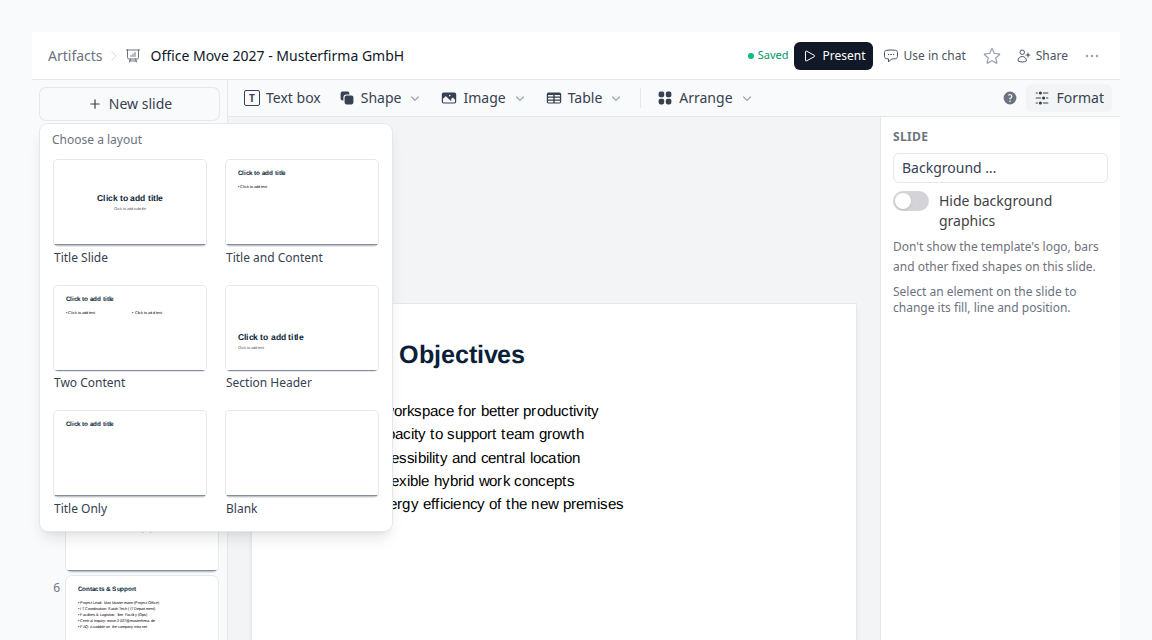
“New slide” shows the layouts of your template.
Below the slide you write notes for yourself as the presenter.
Present
Present starts full screen from the current slide. Use the arrow keys or click to move on, press Esc to stop. Hidden slides are skipped, transitions such as “Fade” and “Push” are shown. From beginning in the ⋯ menu starts at the first slide.
On a phone you can view and present presentations and read the notes. Editing works on a computer.
Company template and design
Owners and admins upload the company's PowerPoint template under Administration → Branding → Presentation templates (.potx or .pptx) and mark one template as the default. New presentations then use its masters, layouts, colours, fonts and slide size. Without a template, the company look (colour and logo) applies.
In an open presentation, ⋯ → Change design switches to another template or the company look, with a preview first. Your text and images stay; slides move to the matching layout of the new template. If the template has changed since, Kasimir offers Update design.
Work together
If the presentation lives in a project or team, or you have shared it, several people can work at the same time. At the top you see who is there. Whatever another person has selected shows a coloured frame with their name. People with the View or Comment role can open and present the presentation but cannot change it.
With Kasimir
Ask Kasimir in the chat, for example:
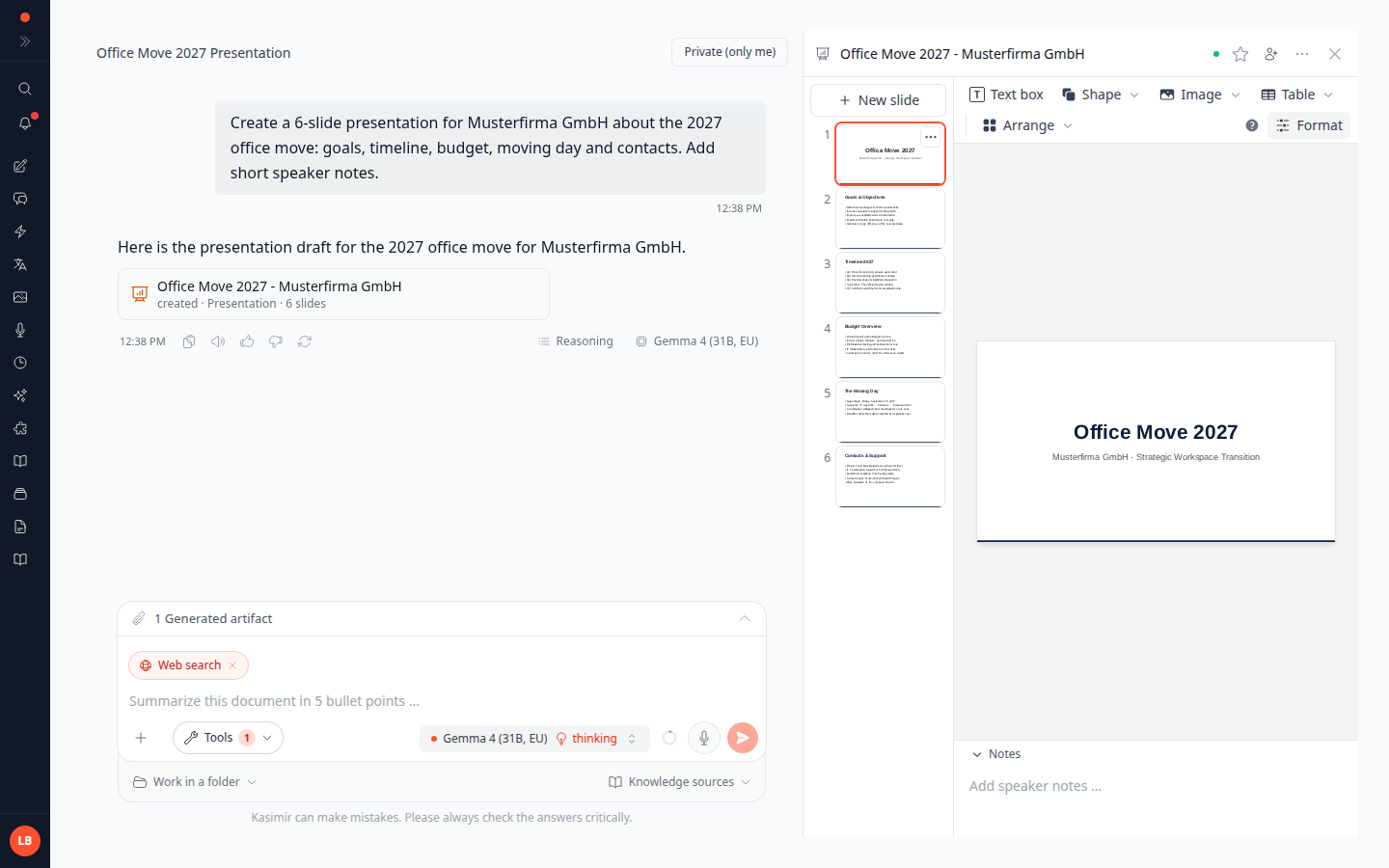
Kasimir creates the presentation in the chat and opens it alongside.
“Make me 8 slides on the project status from yesterday's meeting” (attach the meeting or documents),
“Add an agenda after slide 2”,
“Make slide 3 clearer”,
“Shorten all titles”.
Kasimir creates new presentations in your company design and uses its layouts. If a presentation is open, Kasimir changes it directly; you see the spots with a “Kasimir” frame. Kasimir leaves an element alone while you are working on it and tells you so in the answer (“Not changed – being edited …”). Discard changes below the answer undoes Kasimir's changes; anything you changed yourself since then stays. Kasimir also answers questions about the content and notes of your presentation.
Open PowerPoint
The Open PowerPoint tile imports a .pptx file (up to 95 MB, up to 300 slides). Afterwards Kasimir lists what could not be taken over or was simplified, for example:
Charts and SmartArt are shown as images and stay unchanged for PowerPoint.
Videos, macros and links to external files are removed.
Fonts Kasimir does not have are replaced by a similar font; the download keeps the original font name.
For your security, Kasimir never runs anything contained in a PowerPoint file.
Download
⋯ → Download gives you the presentation as PowerPoint (.pptx) or PDF (one page per visible slide). Charts and other PowerPoint content taken over are editable objects again in the .pptx. PowerPoint may look slightly different, for example line breaks with substitute fonts.
Versions
Kasimir saves versions automatically – after a pause in editing and before every change by Kasimir. ⋯ → Versions shows every version with slide previews; you can name a version and restore it. Before restoring, Kasimir saves the current state as a version of its own.
Limits
up to 300 slides, up to 300 elements per slide
images up to 15 MB, PowerPoint files up to 95 MB
animations are not played when presenting (they are kept for PowerPoint)
editing on a computer only