Projects
Shared workspaces for an undertaking: chats, files, meetings, artifacts, prompts, notebook and project instructions – with roles and an optional home team.
Projects are shared workspaces for an undertaking – such as an office move, a client project or a tender. They bundle chats, files, meetings, artifacts, prompts, notebook pages and project instructions in one place and make them visible to all project members. Projects are optional: if you assign nothing, you keep working privately as usual.
A project deliberately widens access: members only see what you assign to the project. Private content is not shared automatically.
Creating a project
In the sidebar, click + next to Projects.
Enter a name, optionally a description and a home team.
Confirm with Create project. You become the project owner.
Anyone with the “Create projects” permission can create projects (all members by default, see Roles and permissions).
The project page
At the top you see name, description and – if assigned – the home team, plus Manage members or View members and Delete project (owner only) or Leave project. Below are the tabs; the active tab is kept in the address (?tab=…) so you can share links to a view.
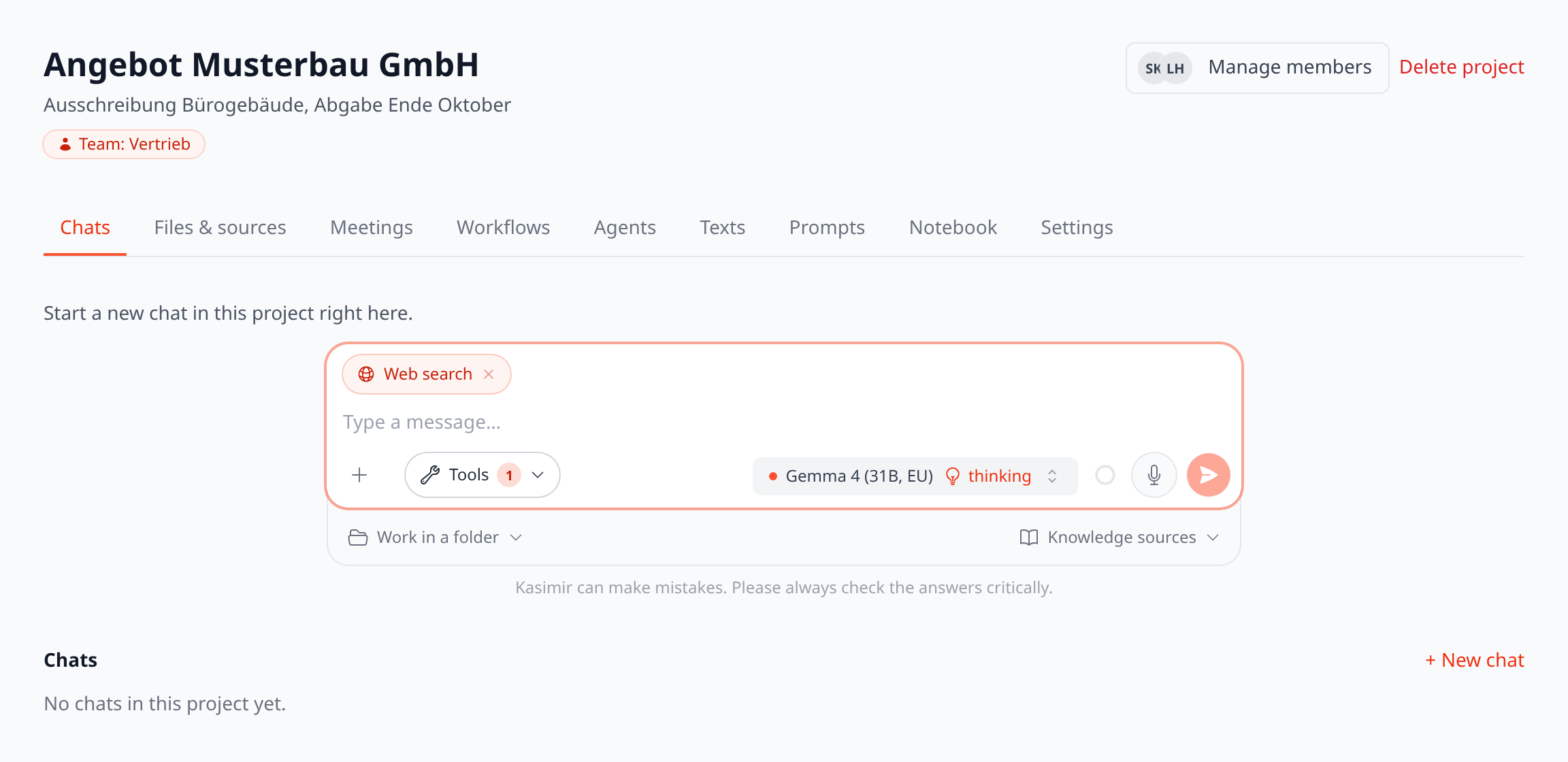
The project page with home team, tabs and chat input
Tab | Content |
|---|---|
Chats | Project chats: all members read along and can continue. Start a new chat in the project right at the top. |
Files & sources | Upload project files or paste text, connect cloud folders to the project. |
Meetings | Meetings assigned to the project, with transcript and summary. |
Workflows | Workflows shared with the project. |
Agents | Agents shared with the project. |
Artifacts | The project’s artifacts – everyone reads along live, the creator can write. |
Prompts | The project’s prompts (Prompt Library). |
Notebook | The project’s notebook pages; pages marked “Include in every answer” flow into every project chat. |
Members | The project’s members and their roles; people with access via the home team are listed at the top (view only). |
Settings | Project instructions, document context and home team (owner and managers). |
Project chats
Project chats additionally use the project instructions and the project’s notebook pages marked “Include in every answer”. Kasimir includes the project’s files – uploaded files and connected folders – automatically. The project name sits on the left of the bar below the input field: one click shows which folders and files are connected, and lets you switch off the uploaded files for a single chat. Add company-wide files when needed via Knowledge sources → Company knowledge. Move existing chats via the chat menu (Add to project), by dragging onto the project or via the space picker in the header.
Settings
Project instructions – tone, terminology, common tasks; added to every project chat as permanent context.
Document context – how project files reach the answers: Decide automatically (recommended), Go in depth (everything in full) or Find only what’s relevant (search per question). A gauge shows how much of the model’s capacity the files use.
Home team – assigns the project to a team (see below).
Members and roles
Use Manage members (opens the Members tab) to add company members to the project (permission “Share projects”). There are three roles:
Role | Permissions |
|---|---|
Owner | Everything including deleting the project; cannot be removed. |
Manager | Manage members and settings, change and remove other people’s project content. |
Member | See and use the project’s content and create own content. |
Owners promote others to manager and demote them. Every member can leave via Leave project.
Project with a home team
If the project belongs to a team, all members of that team have access automatically; the team lead acts like a manager in the project. Manage members lists these people at the top under Via team … – view only; change this in the team’s member management. Below are the additional members added directly; the search only offers people who don’t have access yet.
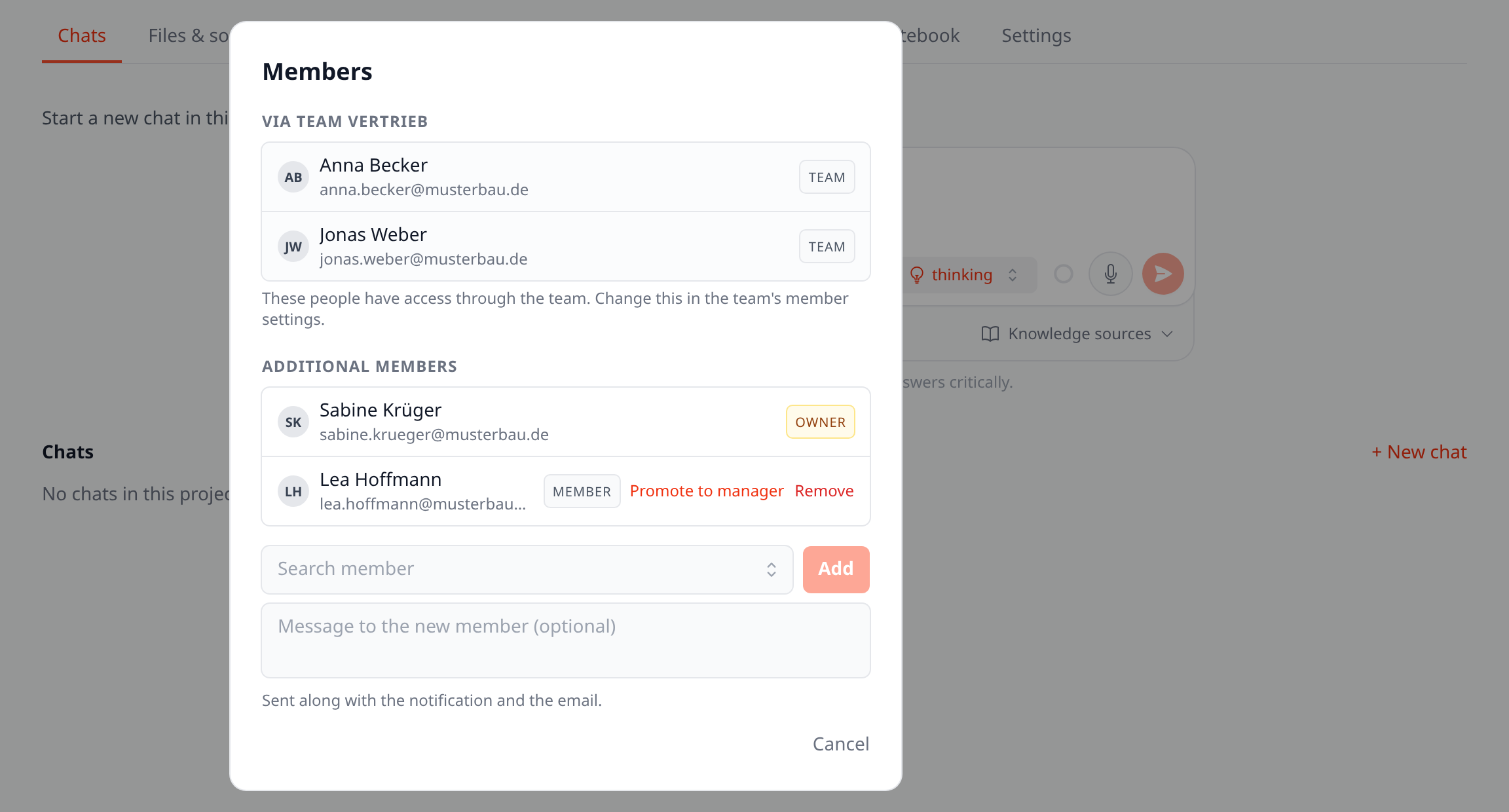
Members of a project with a home team: via the team at the top (read-only), additional members below
Assigning content to a project
Assign chats, artifacts, prompts, files and meetings to a project via their space or visibility picker. From then on all project members see them. Share agents and workflows with the project via Share.
Deleting a project
Only the owner deletes a project. Deleted along with it are: the project’s chats, artifacts, prompts and files; the folders connected to the project together with their files in Kasimir (the files in the cloud stay untouched, and a folder that is also connected elsewhere stays there); agents with this home project including their uploaded files; the project’s skills and the project’s scheduled tasks. Workflows remain and only lose their assignment to the project; meetings stay with the person who recorded them. For the project’s notebook pages you choose: delete permanently or take them over, bundled under “Project: name”, into your personal notebook.
Deletion is permanent. Check beforehand whether anyone still needs the content.