Allowed AI models per team and project
Decide which AI models may be used in a team or project, for example when contracts only allow processing in a specific data center.
What is this?
Some projects come with obligations: content may only be processed by certain providers or in a certain data center. With a model policy you decide which AI models are allowed in a team or a project. Everything that belongs to that team or project follows it.
Who can set it?
Team: owners and admins, and the team lead.
Project: owners and admins, and everyone who manages the project (including the lead of its home team).
Other members can see the setting but cannot change it. Every change appears in your company's audit log.
How to set it
Open the settings: in a team via the “Settings” button at the top right, in a project via the “Settings” tab.
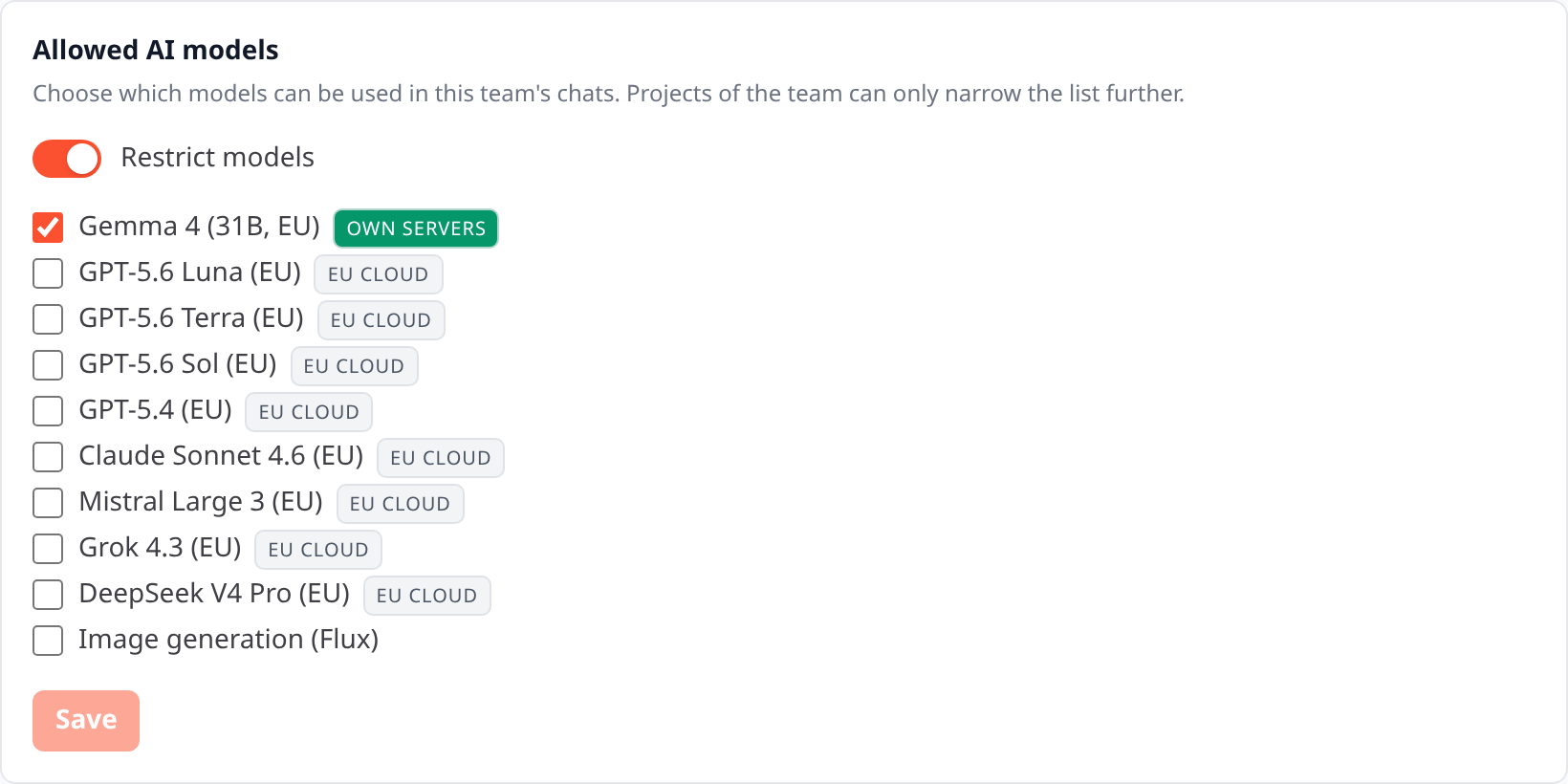
In the “Allowed AI models” section, turn on “Restrict models”.
Tick the models that should be allowed. At least one chat model must be ticked. Image generation is a separate entry: without a tick there are no images in the team or project.
Save.
With the switch off there is no additional restriction. What your company has enabled applies.
How company, team and project combine
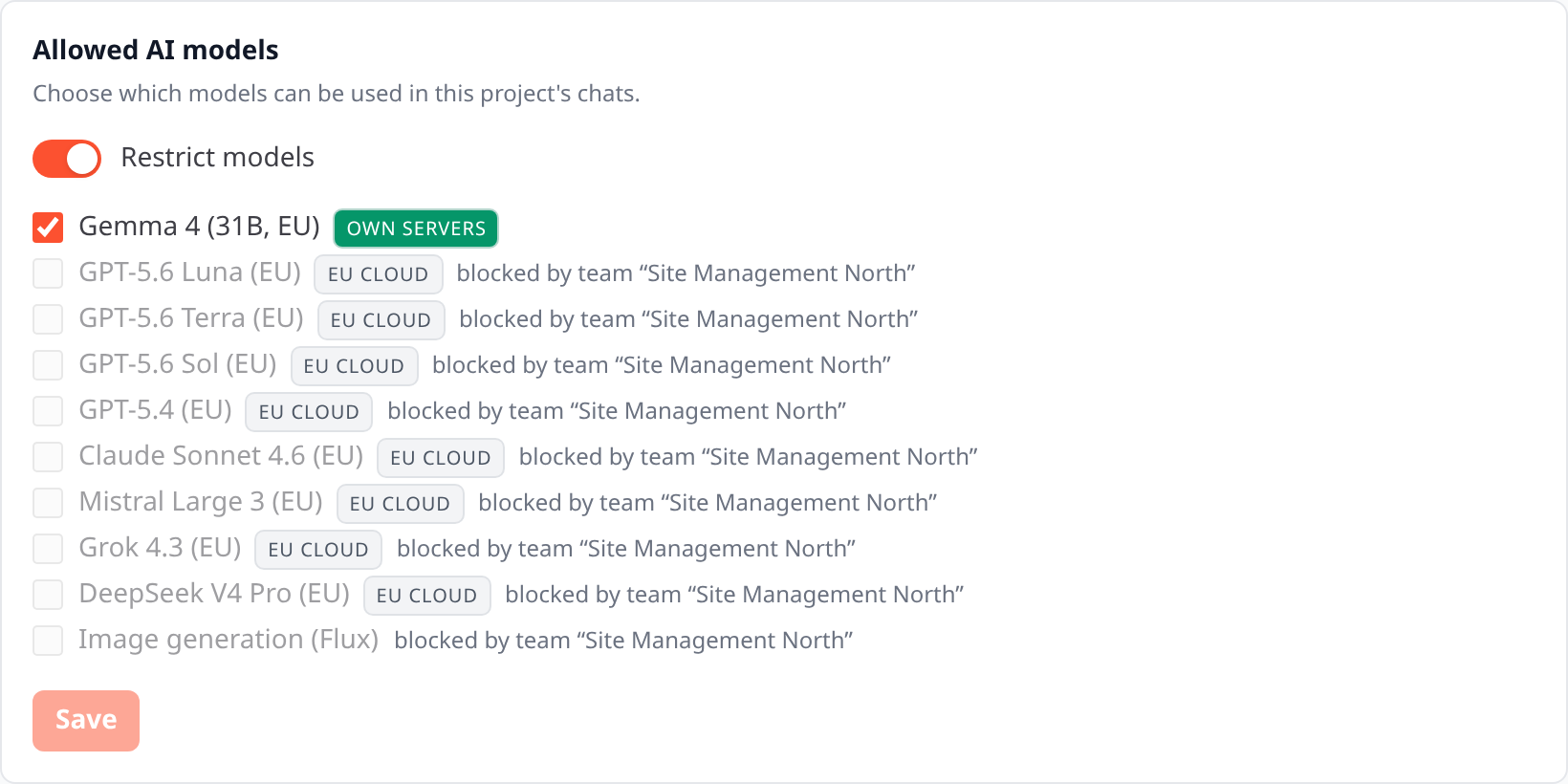
Only what is allowed on every level is allowed: company, team and project. A project inside a team takes over the team's rule and can only restrict it further, never widen it. If a project lists a model the team does not allow, it stays blocked and is shown as “blocked by the team”.
If the team's and the project's lists do not overlap at all, no model can be used in the project. Kasimir warns you about this when you save.
What users see in chat
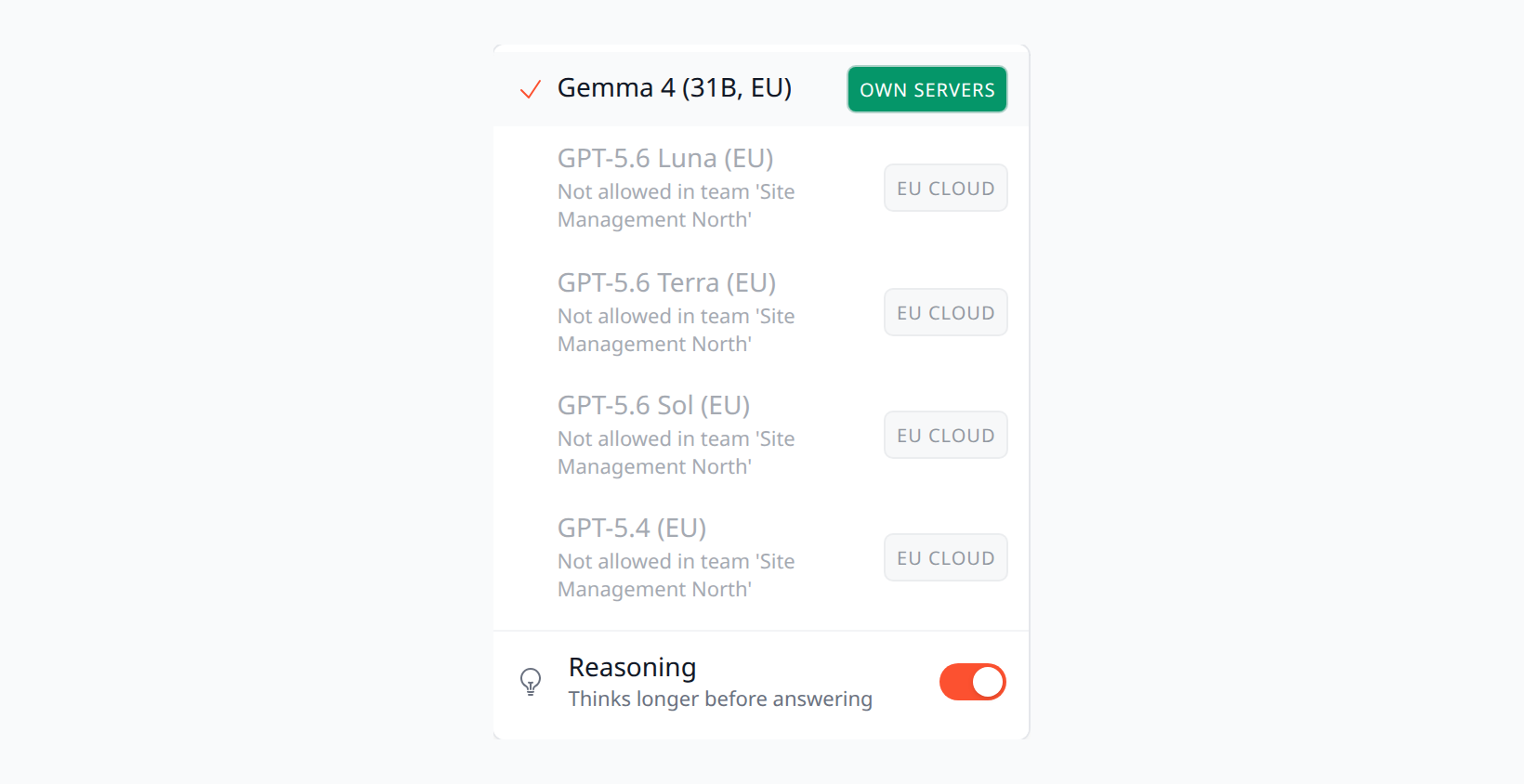
In the model menu, models that are not allowed are greyed out, with a note why.
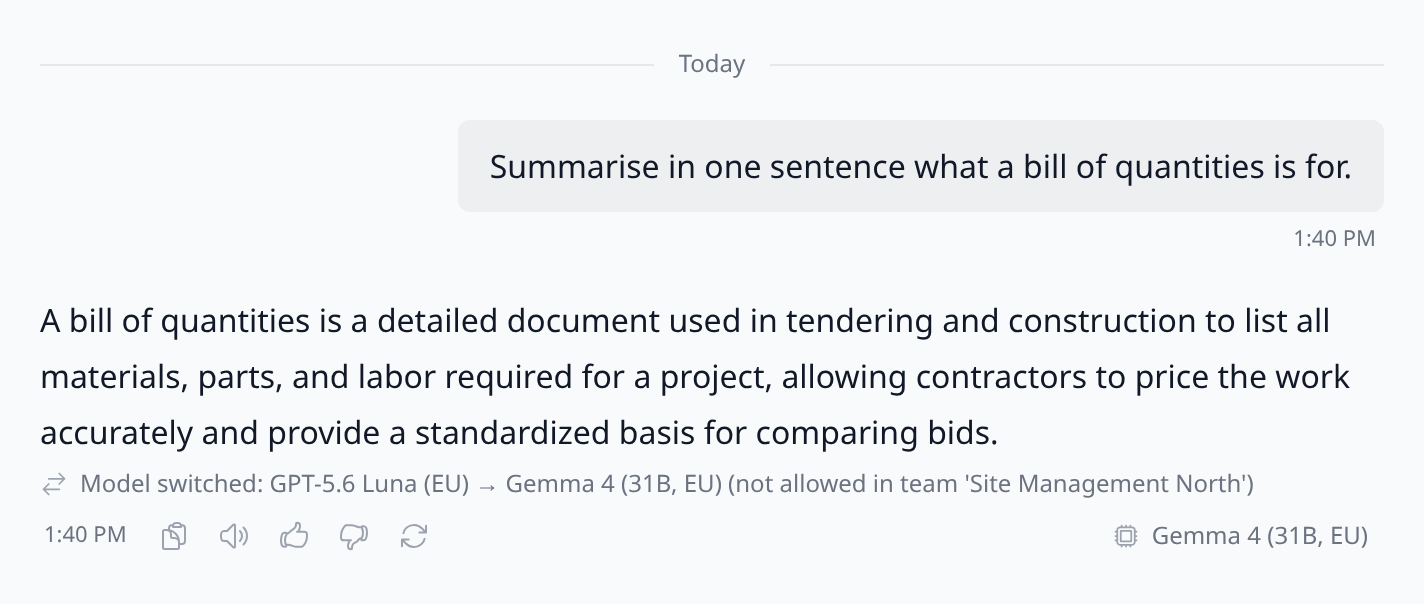
If the selected model is not allowed in the team or project (for example because the chat was moved or the rule was tightened), the chat switches automatically when you send the next message: to your company's default model if allowed, otherwise to the first allowed model. A line below the answer shows the switch, and it stays visible after reloading.
If no model at all is allowed in the space, sending is disabled. The note names the lead as the contact.
Agents, workflows and scheduled tasks
Here Kasimir never switches the model quietly.
Agents in a project: when you save, Kasimir checks the configured model. If it is not allowed, saving is rejected. An agent that answers in a chat follows the team or project of that chat.
Workflows: the home project and every team and project the workflow is shared with count. Only what is allowed in all of these spaces is allowed. A node with a model that is not allowed cannot be saved; an existing node fails at run time with a clear message. If you share a workflow or agent with a team or project where its model is not allowed, the sharing dialog warns you.
Scheduled tasks, sub-agents and meeting summaries: the space's rule applies here too. If a scheduled task fails, the responsible person gets a message in their inbox. For meetings the transcript is kept even if the summary cannot be created.
A project leaves its team, or a team is deleted
So that the rule is not lost, Kasimir copies the team's list into the project and locks it. The project can only restrict it further afterwards. Only owners and admins can widen or remove it.
Good to know
The rule follows the place, not the document. A document from a project can be processed with a different model outside the project if someone attaches it by hand there, it is found through company knowledge (if it is visible company-wide), or it is chosen as a knowledge source in the translator. If you need a hard binding, keep such documents only in the project and restrict on company level as well.