Chat
Kasimir's multi-LLM chat: write with several language models in a GDPR-compliant way, analyse files, search the web, and bring in company knowledge and tools.
Chat is the heart of Kasimir: a conversation window where you work with several AI language models – write and rephrase text, summarise documents, search the web, query databases, generate charts, and much more. Everything runs in a GDPR-compliant way; the default model is operated on Kasimir's own servers inside the EU. This article explains every feature exactly as it behaves in the product.
What chat can do
Talk to several LLMs and switch models at any time
Attach files (PDF, Word, Excel, PowerPoint, images and more) – the text is extracted and read automatically
Search the web and have individual pages read
Bring in company knowledge (uploaded documents), databases, and connected services (Microsoft 365, Google Workspace …)
Generate charts and simple interactive 3D scenes right inside the chat
Dictate (microphone) instead of typing
Address and combine agents (predefined personas)
Have answers read aloud, copy, share, and rate them
Starting a chat
Click New chat in the sidebar. You land on the start screen with a personal greeting and example prompts.
Type your question into the input field – or click one of the example cards (
Summarize the key points…,Draft a reply email…, etc.) to load it as a draft.Press
Enteror the orange send button. The first message automatically creates a conversation and derives a title from it.
Enter sends the message. For a line break within the message, use Shift+Enter.

The input field (composer)
Below the text field you'll find a compact toolbar:
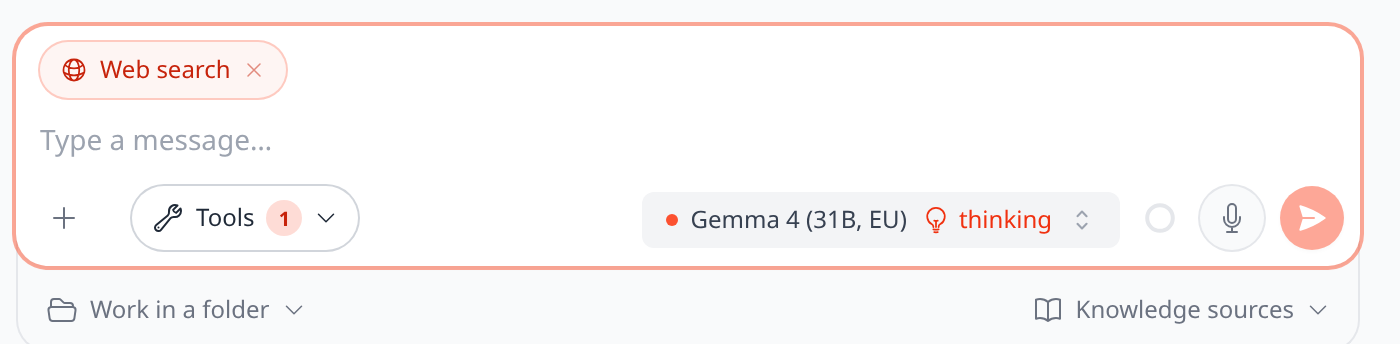
The input field with tools, model choice and the knowledge bar below
The "+" menu
The + icon gives you three actions:
Upload file– attaches a document or image to this message.Workflows– starts a predefined, multi-step workflow.Prompt library– inserts a saved template into the input field; in a team or project chat, that space’s prompts are listed first.
Tools
Use Tools (wrench icon) to switch on extra capabilities per chat. Active tools appear as removable chips above the input field; the number on the button shows how many are on.
Tool | What it does |
|---|---|
| Lets the model search the internet and read pages. If your organisation requires “Company knowledge only”, the switch is locked. |
| Unlocks the Python sandbox (e.g. to analyse attached CSV/Excel files) |
| Creates an image from your description (only if your organisation allows the image generator) |
| Has the answer drawn as a diagram |
| Shows the loaded skills (managed under |
Knowledge sources
The bar below the input field holds everything Kasimir answers from in this chat: on the left Work in a folder, in the middle the sources you switched on as chips (each with its own ×), on the right the Knowledge sources menu.
In project and team chats, the name of the project or team replaces Work in a folder on the left. Its menu shows what the space is connected to: folders with their status, uploaded files (can be switched off for this chat), notebook and company-wide folders. Kasimir includes all of it automatically. To add a folder just for this chat, use the option at the bottom of that menu – there this only works via a company connection, so only for owners and admins.
Source | What it does |
|---|---|
| Brings in fully processed documents as searchable knowledge – in a private chat the company-wide documents and your own private ones, in a project or team chat the company-wide ones (the space’s files are included there anyway). Team and project documents are used in that team’s or project’s chat. |
| One switch per connected integration (e.g. OneDrive, Outlook, Nextcloud). If a connection is failing, it says so here together with “Reconnect” or a button that notifies the person in charge – and a yellow dot appears on the Knowledge sources button. |
| One switch per connected database – Kasimir can query switched-on ones read-only |
| Folders shared for this chat and the notebook – with status and problems |
Tools and sources are deliberately opt-in: a service only contributes once you’ve switched it on for this chat. That way you always know what the chat may access.
The "@" context picker
Type @ in the input field to open a picker. Results are grouped by category:
Integrations – activates a connected source for this chat.
Folders – selects all documents in a document folder as knowledge.
Agents – inserts a persona as a coloured pill mid-sentence; that one message is then answered by that agent.
Files – inserts the file name as an
@filenametext reference.
If a message contains several agent mentions, the last one wins (v1). A subtle hint appears when a prior mention is replaced.
Dictating instead of typing
The microphone icon starts voice recording. While recording, a live waveform replaces the toolbar; clicking again stops it, the speech is transcribed and inserted at the cursor position. This requires your browser's microphone permission.
Choosing the model
On the right of the toolbar sits the model picker. When opened, it shows a list with a badge per model that tells you where it runs:
Own servers(green) – runs on Kasimir's own servers in Germany.EU cloud(grey) – processed by a cloud provider inside the EU.Non-EU(amber) – data leaves the EU; only available if your organisation has explicitly allowed it.
Hovering a model opens (on desktop) a detail card with Context size, Image understanding (yes/no), and the exact data processing:
Processed on Kasimir's own servers in the EU (the sovereign default model)
Processed in the EU via Azure AI Foundry (Microsoft)
Processed outside the EU – data leaves the EU
At the bottom of the model menu you switch Thinking on or off: the model then reasons longer before it answers. While it is on, the model button shows “thinking”. If a model can’t do this, the switch is locked.

If you pick a model that does not run on Kasimir's own servers, a subtle hint appears below the input field (amber for non-EU models). Your last-chosen model is remembered. Models under Coming soon are a preview only and not selectable.
Only models with Image understanding: yes can actually see images and plan sketches. With those models, attached PDFs are additionally provided as images of individual pages – as many as the model accepts per request: first the pages you name in your message (“check page 2”), then from page 1 onwards. That way markings and drawings are recognised.
Attaching files
You can add files via + → Upload file, by drag & drop straight onto the input field, or by pasting (e.g. a screenshot). Upload file opens a dialog with the tabs In chat, Upload, Microsoft 365, Google Workspace and Meeting; in a project chat In project is added, in a team chat In the team.
Maximum size: 25 MB per file.
Supported formats: PDF, Word (DOC/DOCX), Excel (XLS/XLSX), PowerPoint (PPT/PPTX), OpenDocument (ODT/ODS/ODP), RTF, TXT, Markdown, CSV, HTML, XML, JSON, GAEB bills of quantities, emails (EML/MSG), CAD drawings (DXF/DWG), and images (PNG, JPEG, WEBP, HEIC).
Content check: program files and files whose content does not match their extension are rejected.
Kasimir extracts the text automatically and makes it available to the model – across multiple follow-up messages too. Very large attachments are not sent in full but searched intelligently (RAG) so the context window doesn't overflow.
If attachments are still being read (e.g. during text recognition of a scan), the answer waits until they are done. Meanwhile it shows “Waiting until your files are read” or “Text recognition · page x of y”. Answer now with what is available makes Kasimir answer right away; anything still missing is then named in a note on the answer – with Answer again now.
Attached images are shown directly as images to vision-capable models. Duplicate uploads (same name + content) are detected automatically and included only once.
Sending, cancelling, and the safety dialogs
Before the message actually goes out, two dialogs may appear:
Web search suggested – if web search is off but the question looks like it needs current information (prices, products, facts, sources), Kasimir asks:
Enable web search & send,Send without web search, orCancel.Context window almost full – if the message would exceed the model's limit, you can choose:
Compress & send(summarise older history),Send anyway, or cancel.
While the answer streams, the send button becomes a Stop button – one click aborts the running response. You can already type your next message while streaming continues.
During the answer
The answer appears word by word. Depending on the task you may also see:
Reasoning – for "thinking" models, an expandable section (
Show reasoning).Tool steps – one line with the current step (e.g. “Searching the web…”), the number of steps and of sources found; after the answer, Steps opens the full list.
Charts and 3D scenes embedded directly by the model.
Indexing progress when a large knowledge library is first prepared for search.
Artifacts (e.g. texts) that appear as a card and open in the editor in the side panel.
Below the finished answer there are three switches: n sources opens the list of cited passages, Steps the tools used, and the model name the details of the answer. There the Documents row shows how documents were included: Full context, Relevant passages, Hybrid or Live folder.
Actions on a message
Hovering over an answer reveals an action bar:
Copy– copies the answer text.Read aloud– reads the answer via text-to-speech (click again to stop).Share– via your device's native share sheet (where available).Helpful/Not helpful(👍/👎) – with an optional detail dialog (category + comment). Feedback stays within your company.Regenerate response– re-runs the preceding question.
Your own messages are editable: via the pencil icon you change the text and re-send with Save & regenerate – the original answer (and everything after it) is replaced.
Every message shows its time, and a date separator appears between days. Clicking the time shows the full date and time, for answers also “answered in …”.
The context meter
Next to the model picker (on desktop), a small bar shows how full the context window is. Clicking it opens a breakdown by History, Documents, System, Tools, Answer, Draft, and Free. There you can also compress older history manually via Summarize now – your attachments and the most recent messages are always kept.
If a chat gets very long, summarizing helps free up space without losing the thread. Alternatively, just start a new chat.
Managing chats
Each conversation can be organised via the action menu in the list:
Rename(also by clicking the title at the top)Pin/UnpinAdd to project/Remove from projectShare– creates a read-only public link with a snapshot of the chat (private chats only; project and team chats cannot be shared)Delete
To find earlier conversations, use search: the magnifier icon at the top of the sidebar, or ⌘K / Ctrl+K.
A shared link shows a snapshot of the messages so far. Later messages are not included, and anyone with the link can view the snapshot.
Project and team chats
Use the space picker in the chat header to keep a chat private or place it in a project or a team (for a project, Add to project in the menu works too). Once it is in a project or team, all members can see it. You then additionally get:
Presence – small avatars show who else currently has the chat open.
Live sync – new messages from teammates appear automatically.
Project instructions – the project's instructions flow into every answer, as do the project's notebook pages marked “Include in every answer”.
The space’s files – Kasimir automatically includes the uploaded files and connected folders of the project or team.
Agents in chat
You can attach agents (personas) to a chat. They appear as badges in the header and can be removed there. Using @, you address a single message specifically to an agent, which then answers with its own system prompt, model, knowledge, and tools.
Budget & limits
Monthly budget: if your organisation has set a cap, a warning appears at 90 %; sending is blocked once it's reached.
Rate limit: if you send a lot of messages in a short time, Kasimir briefly slows you down.
Message length: up to 50,000 characters per message.
Deliberate limitations (as of v1)
Per message, the last agent mention wins when several are present.
Web search is locked if your organisation requires “Company knowledge only”.
PDF "seeing" works only with vision-capable models and only for as many pages as the model accepts per request.
The context meter is shown on desktop only.
Models under
Coming soonare a preview only and not usable.
Have diagrams drawn
Ask Kasimir in chat to draw something ("Draw the approval process as a flowchart") — the answer contains a fully rendered diagram instead of source code. You can zoom in, view it fullscreen, download it as PNG, SVG or Mermaid file, or move it into an artifact for editing via Open as artifact.
More about this: Diagrams.