Prompt Library
Save recurring instructions as templates – private, in a team or in a project – and use them in chat with one click.
The Prompt Library stores instructions you need again and again – for example “Summarise these minutes in five points” or a reply template for customer requests. A saved prompt lands in the chat input with one click; Kasimir asks for placeholders like {{customer}} first.
Where to find the Prompt Library
Sidebar → Customize → Prompt Library – create, organise and manage prompts here.
In a chat: click + in the input field and choose Prompt Library – the selected prompt is inserted.
In a team or project: the Prompts tab shows that space’s prompts.
Who sees a prompt
Every prompt lives in exactly one place – just like chats and texts:
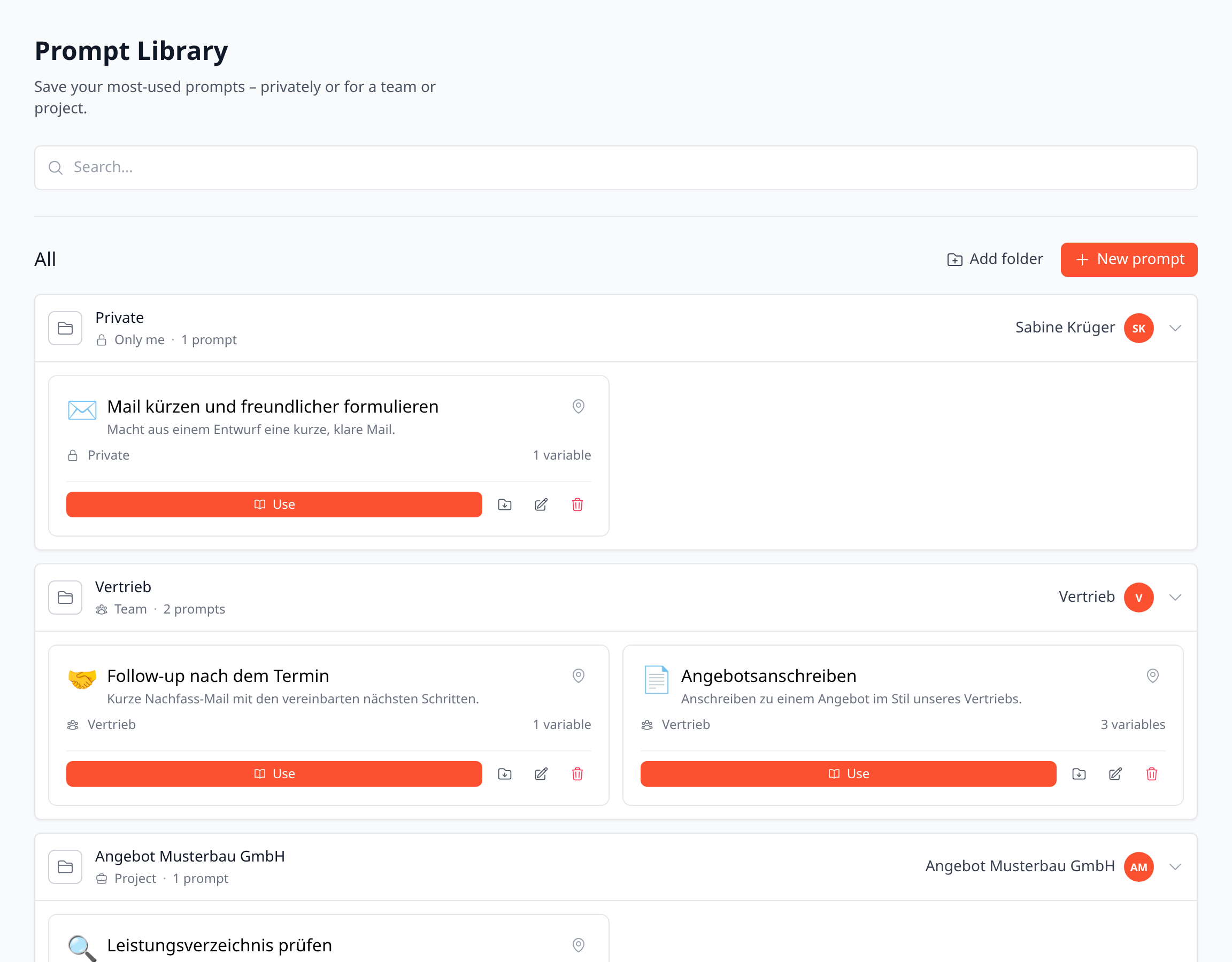
The Prompt Library: sections for private, each team and each project
Visibility | Who sees and uses the prompt |
|---|---|
Private | Only you. |
Team | All members of the selected team. |
Project | All members of the selected project – including people who have access through the project’s home team. |
There is no longer a company-wide prompt for everyone. If many people should use a prompt, create it in a team or project they belong to.
Creating a prompt
Open the Prompt Library and click New prompt (or use the Prompts tab of a team or project – the space is then preselected).
Enter a title, optionally an icon and a description.
Under Visibility, choose Private, Team or Project and – for team or project – the specific space.
Write the prompt text. Placeholders in double curly braces (e.g. {{topic}}) become input fields; on the right you set whether each is a short text, a longer text or a choice.
Optionally choose a folder, then Save.
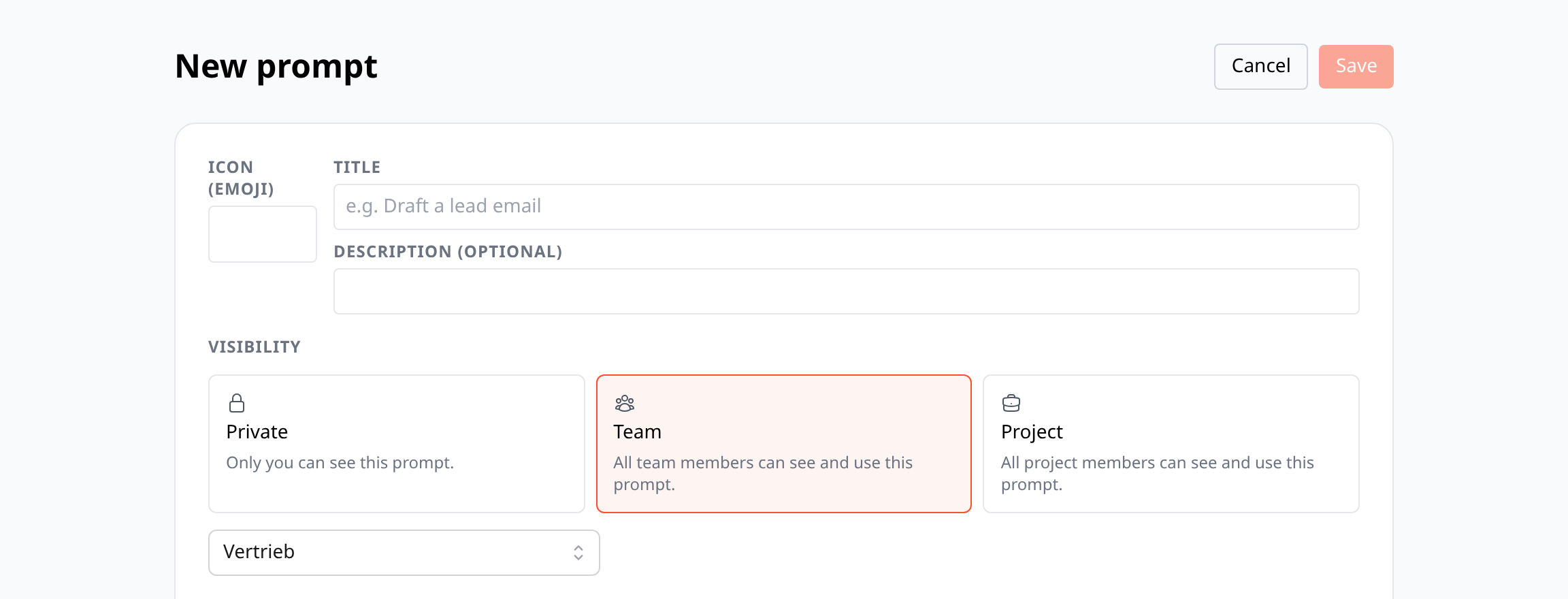
When creating a prompt you choose where it lives: private, in a team or in a project
Using a prompt
Click Use (in the library) or pick the prompt in a chat via + → Prompt Library. If the prompt has placeholders, Kasimir asks for the values in a short form and fills them in. In a team or project chat, that space’s prompts are listed first.
Use the pin icon to pin prompts you use often – they appear first in the chat picker. Pins are personal.
Who can change a prompt
Who | Can |
|---|---|
Creator | Edit, move and delete their own prompt – for team and project prompts as long as they still have access to the space. |
Team: editors and leads | Also edit and delete other people’s team prompts. |
Project: owners and managers | Also edit and delete other people’s project prompts. |
Other members | See, use and pin the space’s prompts and create their own. |
A team or project prompt belongs to the space: if its creator leaves the team, the prompt stays for everyone else. Deleting a team or project deletes its prompts as well.
Folders
Use Add folder to group prompts (private or visible to everyone). A folder does not change who sees a prompt – only the prompt’s visibility does. If a team prompt sits in a folder you cannot see, you will find it in its team’s section.