Teams
Permanent workspaces for groups in the company: shared chats, texts, prompts, files and notebook, team roles and projects with a home team.
A team is a permanent workspace for a group in the company – for example sales, accounting or development. Everything in the team is visible and usable for all team members: chats, texts, prompts, files, meetings, notebook pages and shared agents and workflows. Projects can belong to a team; then the whole team is part of them automatically.
Creating a team
Owners and admins create teams under Administration → Teams. Whoever creates the team automatically becomes its lead. Members are added there too; everyone in a team is already a member of the company.
The team page
Your teams are listed in the sidebar under Teams. A click opens the team page with these tabs:
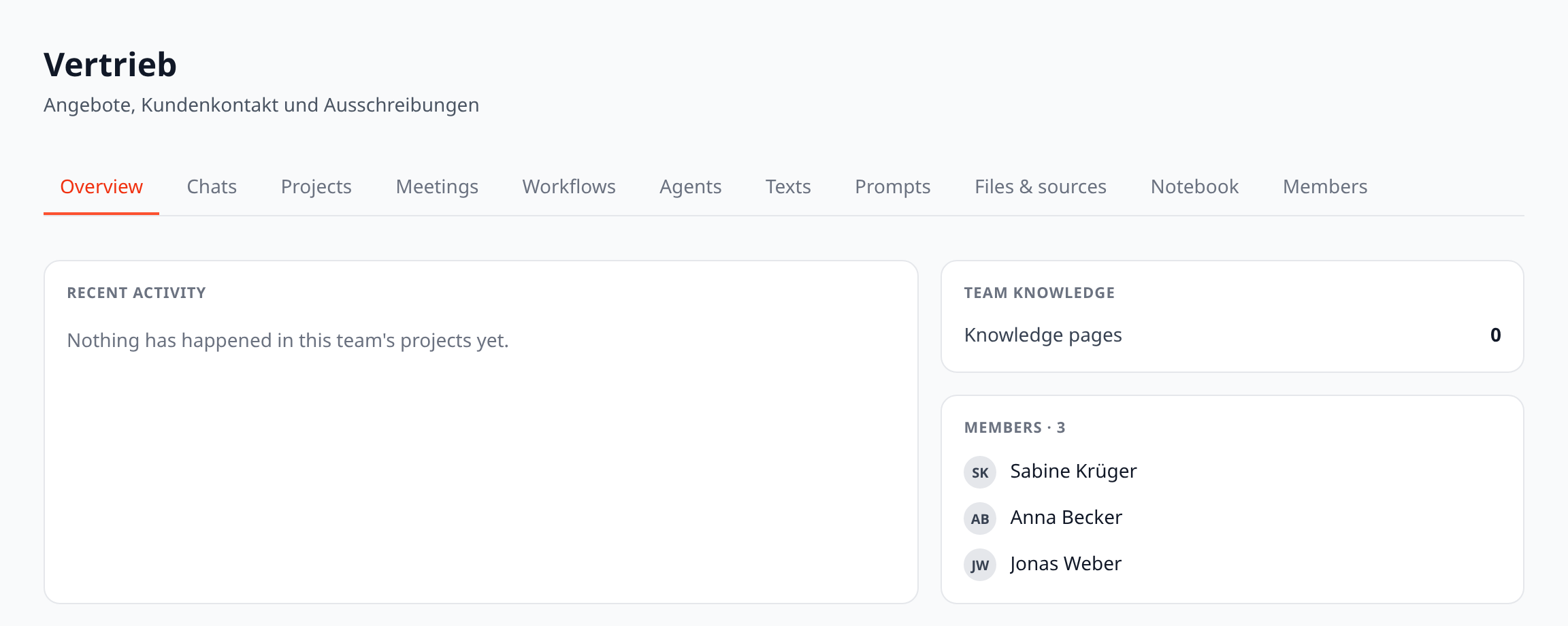
The team page and its tabs
Tab | Content |
|---|---|
Overview | Team knowledge (knowledge pages, of which “in every answer”) and what happened recently in the team’s projects |
Chats | Team chats: all members can read along and continue |
Projects | Projects that have this team as their home team |
Meetings | Meetings assigned to the team |
Workflows | Workflows shared with the team |
Agents | Agents shared with the team |
Texts | The team’s texts – everyone reads along live, the creator can write |
Prompts | The team’s prompts (Prompt Library) |
Files & sources | Team files and connected team folders |
Notebook | The team’s notebook pages |
Members | Members and their team roles |
Only team members see a team’s content. Owners and admins without membership see the structure and manage the team (members, roles, name, delete), but not its content.
Roles in a team
Role | Can |
|---|---|
Member | See and use team content, create own chats, texts, prompts and files, edit the team’s notebook pages |
Editor | additionally change and remove other people’s team files, meetings, chats and prompts |
Lead | additionally add and remove members, assign roles, rename and delete the team; acts like a project manager in the team’s projects |
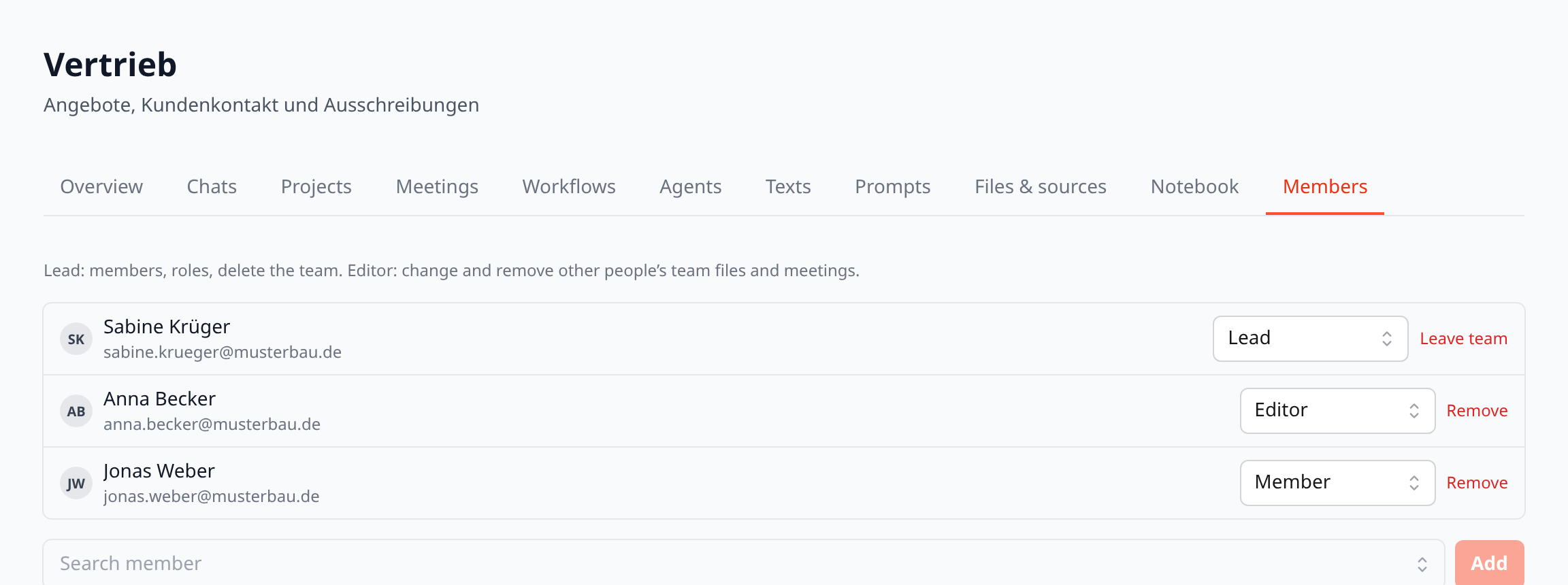
Team roles: lead, editor, member
A team always needs at least one lead: the last lead can neither leave nor be demoted.
Bringing content into a team
Chats and texts: in the header of a chat or text you choose the space (private, a project or a team). A team chat automatically includes the team’s files and folders; company knowledge is added via Knowledge sources.
Prompts: choose the “Team” visibility when creating.
Agents and workflows: share them with the team via Share (team shares need the matching permission under roles and permissions).
Folders: owners and admins connect a cloud folder to the team.
Projects: a project with a home team is automatically open to all team members.
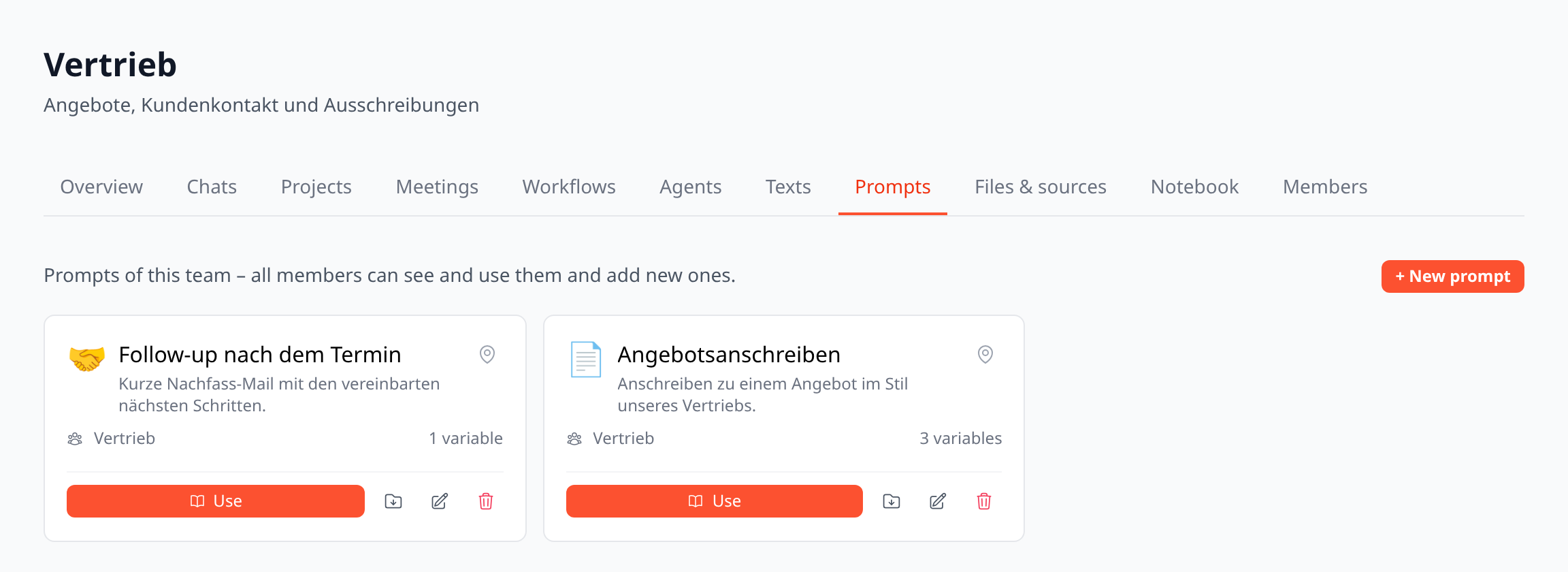
The “Prompts” tab shows the team’s prompts
Deleting a team
The lead as well as owners and admins delete a team on the team page. Memberships, team chats and texts, team prompts, team files and the sources of team folders are removed. You can take over the team’s notebook pages into your personal area first or delete them as well. Meetings stay with the person who recorded them.